

Register for Classes in Experience Portal
Step 1: Login
Select Experience Portal from the top Quick Links menu
Enter your username and password, then login
Step 2: Open Student Self-Service
Locate the Student Self-Service card on your dashboard
Select Academic
Click Register for Course(s)
Step 3: Add Classes to Your Cart
Select Step 1: Add Section(s) to Cart
Choose the Term (for example, Fall 2026)
Select a Subject (for example, Philosophy)
Click Search
Step 4: Select a Course Section
Review the list of available classes
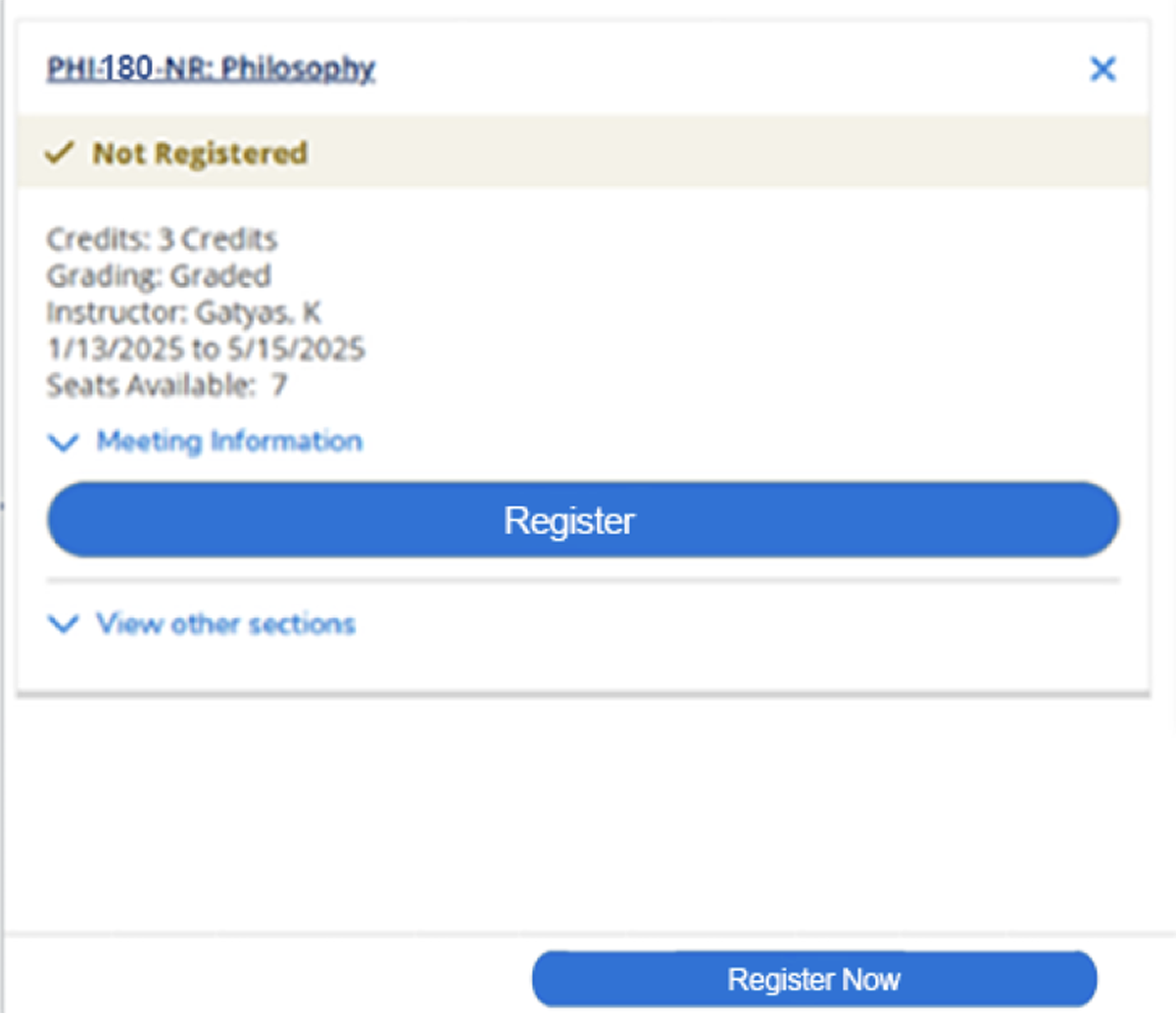
Find your preferred section (for example, PHI 180 NR)
Click Add Section to Schedule
✔️ A message will appear confirming the course has been added to your schedule
Step 5: Register for Your Classes
Return to the registration screen
Select Register
Click Register Now
Step 6: Confirm Your Registration
Your schedule should display your registered classes
Check that all selected courses appear correctly
✔️ You are successfully registered when your courses appear in your schedule without errors
⚠️ Troubleshooting
If You Cannot Register:
You may have a hold on your account
The class may be full
You may be missing a prerequisite
👉 Contact the Registrar or Advising Office for assistance